One of the limitations in Gimkit Creative is you only have 75 blocks per block code. There are many ways you can reduce the number of blocks you use, and this Guide will teach you a few!
Personally, I love block code!
Although block code can have if statements, checkers specialize in if statements by costing less memory. Check out the table below! It holds truth.
| Device | Memory |
|---|---|
| Checker | 35 |
| Block Code | 500 |
Use checkers just like you would use if statements in block code. Here is an example!
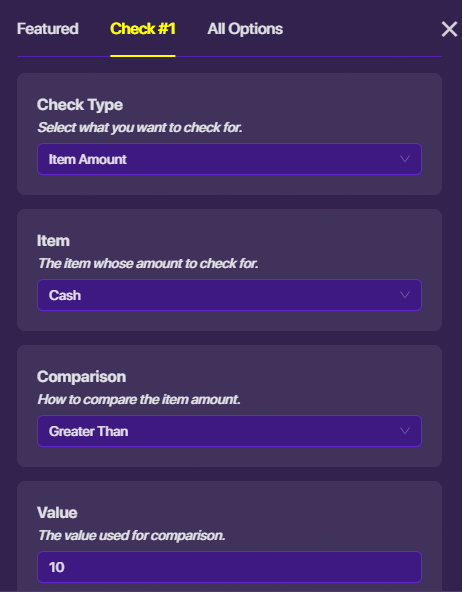
Coming hopefully on 1/19/2026!
Did you know? You can save space by combining multiple if statements into one block? Let me explain.
Let's say you have this code (in the screenshot below). There is a randomizer that picks a number from 1-3. You have if statements to determine what number was chosen. This takes up a whole 22 blocks!
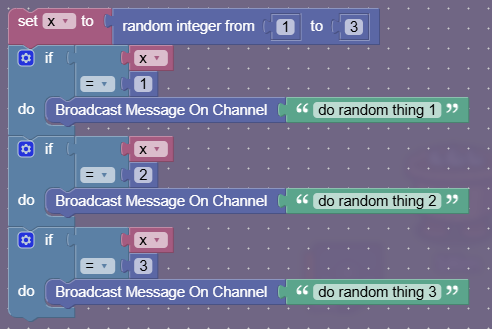
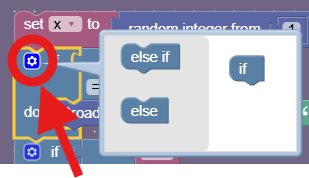
Let's click on the gear, located in the if statement.
Next, drag two else if's into the space.
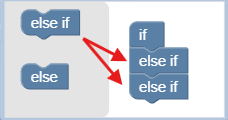
Finally, delete the old if statements and put everything together!
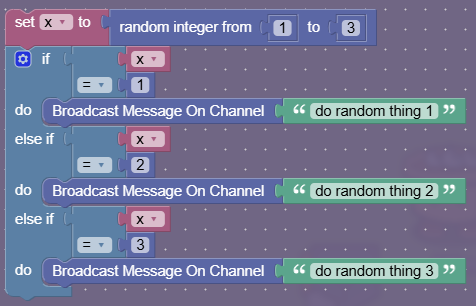
Congrats! You just saved 2 blocks!
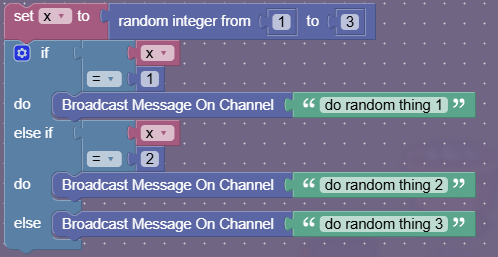
But wait! If the code ever reaches the last if statement, it will always be true since there are no other numbers. Replace the last "else if" with "else". You just saved 3 more blocks!
Coming hopefully on 1/19/2026!